


At-Home Testing Test Day Checklist
Know what to expect when you take your Praxis test at home.

How to Prepare Your Computer
To ensure your system is ready for test day, follow these steps carefully:
Step 1: Download the ETS® Secure Test Browser
- Choose the version for your operating system:
- Download for Mac® OS
- Download for Windows®
- After downloading, run the file to complete installation.
- When you see the message: “Success: You have installed the ETS secure test browser,” you may close the browser.
Step 2: Run the Equipment Check
- Open the ETS Secure Browser and click the Equipment Check button.
- This will verify your system’s compatibility, including:
- Audio and video functionality
- Internet bandwidth
- Device configuration
Important: The system check cannot detect firewalls or certain security settings. We recommend running the check multiple times, at different times of day, and in the same environment you plan to test in.
Device & Operating System Requirements
- Use a desktop or laptop computer only.
- Tablets, Chromebooks™ and mobile devices are not supported. Microsoft Surface devices with Windows OS version 11 or higher are supported.
- Your operating system must be licensed and up to date:
- Windows®: Version 11 or higher
- Mac OS: Version 11 or higher
Security & Permissions Requirements
ETS does not recommend using a work or school device unless you have administrator rights to install and configure software.
- VPNs, firewalls, and antivirus software may interfere with the test. You may need to disable or reconfigure them before testing.
Speaker
- Use an internal or external speaker to hear the proctor.
- Headsets and earphones are not allowed.
Microphone
- Use an internal or external microphone that is not part of a headset to talk to the proctor.
Camera
- Camera may be a built-in camera or a separate webcam.
- Camera must move to show the proctor a 360-degree view of the room, including your tabletop surface, before the test.
1. Welcome Screen
Once you open the browser, you'll see the Welcome Screen.
Click the Run Equipment Check button to begin checking your system.

2. Running the Equipment Check
After clicking the button, the browser will test your system.

When the check is complete, you'll see your equipment status:
- Passed: You're good to go.
- Failed: A red triangle will appear with tips to fix the issue.
3. Bandwidth Check Tips
The check includes a bandwidth test.
Because bandwidth can vary:
- Run the check at different times of day.
- Try it on the same day and time as your actual test.
This helps simulate real test conditions.

4. Success Screen
If everything passes, you'll see the Congratulations page.
5. Need Help?
If your check fails and you can't fix it:
- Visit Equipment Check Support for help.
- Click here to go to the Support Page.
- Click here to get redirected to the support page and use Need Help icon to connect with an agent.
- If you’re taking the Art: Content and Analysis test, upload four digital images of your artwork to your Praxis account no later than 3 days before test day by 11:59 PM U.S. Eastern Time. For more information about the requirements for these images, please review the Study Companion (PDF).
- Print a copy of each of the four images from your Praxis account and be prepared to show your proctor the printouts during check-in. The image ID number appearing on the printouts is a critical part of the art-making responses; you'll need to enter this ID as the first line of your response when taking the test.
Test day check-in
Please read and follow these steps very carefully as our process has changed:
Step 1: Launch your test
- Up to 15 minutes prior to your appointment time, you may begin your check-in.
- Using the launch link in your Praxis account or from your registration confirmation email

Step 2: Begin Wheebox system check
- Select "Start Check-in."
- Complete the Wheebox system check. This will verify your system’s compatibility, including:
- Audio and video functionality
- Internet bandwidth
- Device configuration
- Close out all browser tab
- Close out all other desktop applications
Step 3: Verify ID and review testing rules
- Share your screen with the proctor.
- Take a photo of yourself and your identification (ID). The name on your ID must match the name on your account. The proctor will verify and approve your photo and ID.
- The proctor will review the exam rules.
- The proctor will ask you to use either a hand-held mirror or cell phone to show your computer screen.
- The proctor will ask you to use the camera on your computer to show a 360-degree view of the room, including your tabletop surface.
- The proctor will ensure the ETS Secure Browser is downloaded and launched.
- Immediately before beginning your test, you’ll walk through one more Equipment Check with the proctor, who will attempt to assist in troubleshooting any issues.
Interacting with the proctor
- A human proctor will be recording and monitoring your entire test session.
- During the test, the proctor will monitor you (via video camera) and your computer screen to ensure you follow all testing procedures.
- You must be seen on camera by the proctor. To ensure the security of the test, the proctor must be able to see your face from forehead to chin at all times. Suspicious movements could invalidate your test.
- If you need to contact the proctor during your test, speak to get their attention and/or use the chat box. It may take 30-to-60 seconds for the proctor to reply.
- If the proctor is attempting to chat with you, there will be an audio signal from the chat function.
- At the end of the test session, the proctor will ask you to erase the whiteboard or transparency sleeve and hold it up to the camera, showing the front and back.
- Submit the exam, and then close the ETS Secure Browser.
- Once disconnected from the chat, you have an opportunity to participate in a brief survey..

Having Technical Issues?
If you experience a technical problem during the test, notify the proctor by speaking out loud or using the chat function. If you lose your internet connection momentarily, you'll automatically be reconnected to the proctor when your connection is restored. If your exam can be reopened, your proctor will do so for you. If you are unable to reconnect to your test or the proctor, reinitiate the check in process.
If you are still unable to connect click here to get redirected to support page and use Need Help icon to connect with an agent for assistance.
Testing policies and procedures
- Follow all testing rules. Otherwise, your test can be canceled, and your fee won’t be refunded.
- Don’t use any unauthorized materials, including mobile devices, smartwatches, prewritten notes, or textbooks.
- Personal recording devices of any kind are strictly prohibited.
- You must disable any screen-sharing or remote-access software (such as Zoom, Skype®, TeamViewer®, Microsoft Teams® and Apple Remote Desktop™) prior to the test. It must remain disabled throughout the test. Make sure that the software will not open automatically during the test.
- Even during scheduled and unscheduled breaks, don’t communicate with anyone except the proctor.
- There may be references to using a headset during your test. Ignore them; headsets are NOT allowed in the tests at home.
Unscheduled breaks
- Most tests do not include a break. However, you have the option to take a 5-to-10-minute unscheduled restroom break.
- UPDATE: Policy Update Notice (Posted March 2024): Starting June 1, 2024, for any test taker attempting Speech-Language Pathology (5331) or Audiology (5343) via live remote proctoring (LRP) (i.e. At-Home Testing), no breaks, whether scheduled or unscheduled are permitted. Any test taker taking an unscheduled break during an LRP session will immediately invalidate their test, not be eligible for a refund and must wait twenty-eight (28) days before their next attempt. Breaks that abide by the exam and test center policies (including those pursuant to a test taker's approved accommodation) will continue to be permitted at in-person test centers.
Canceling your scores
- If you think you didn’t perform to your potential, you will have the option to cancel your scores at the end of your test but before viewing your unofficial score.
What if I fail the Equipment Check?
- You must resolve all issues and pass the equipment check before checking in for your test. If you can't resolve the issues yourself.
- If you can’t resolve all issues before your test begins, your test will be canceled. You will not receive a refund, and you will have to pay to reschedule the test.
What can I do ahead of time to prevent issues?
- Run the equipment check from your ETS Secure Browser at the time of day you plan to test to make sure you don't have any bandwidth issues.
- Perform a final equipment check from your ETS Secure Browser shortly before your test session starts.
- Close all browsers and applications not needed for the test. Doing so can help prevent bandwidth issues while you test.
- Make sure any other devices in your household that use the internet are not running.
What if I have an issue right before my test starts?
- If you have technical issues immediately before your test, you may click here to get redirected to the support page and use Need Help icon to connect with an agent.
- Keep in mind that your equipment will be checked again right before you test. The test proctor will tell you if there are any issues and you’ll have an opportunity to resolve those issues before the test begins.
What if I have a technical issue and my start time is extended?
- This won't affect the amount of time you have to complete the test. The timer for your test doesn't begin until the proctor enters the password.
What if I have a technical issue during my test?
- If you have a technical issue during your test, speak and wave to get the proctor's attention. If you still have internet access but have been disconnected from the test, notify the proctor via the chat function.
What if I lose internet during the test?
- If you lose your internet connection momentarily, you'll automatically be reconnected to the proctor when your connection is restored. If your exam can be reopened, your proctor will do so for you.
- If you can’t reconnect to your test or the proctor, reinitiate the check-in process. If you are still unable to connect, click here to get redirected to the support page and use Need Help icon to connect with an agent.
Environment Requirements
To ensure a secure and distraction-free testing experience, your environment must meet the following criteria:
Location & Privacy
- Your testing space must be indoors, fully enclosed by walls, well-lit, and quiet, with no background noise or interruptions.
- No one else is allowed in the room during your exam. If another person enters at any point, your test may be terminated and your results invalidated.
Furniture & Seating
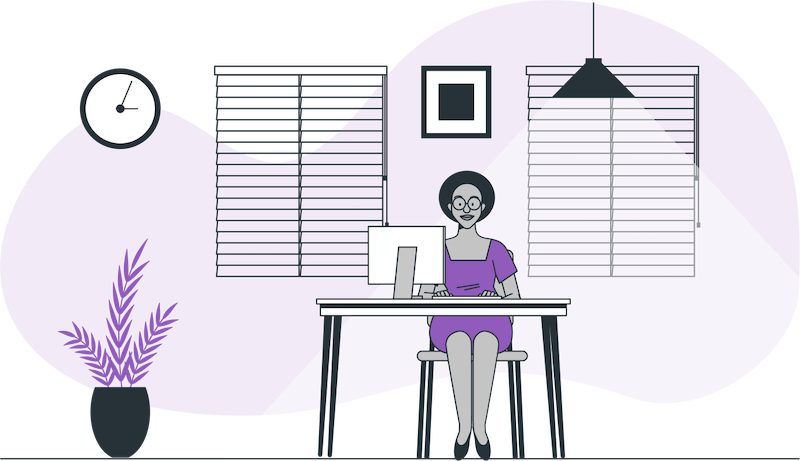
- You must sit in a standard, upright chair—not on a bed, couch, or any soft or reclining furniture.
- Your computer and keyboard must be placed on a desk or tabletop surface.
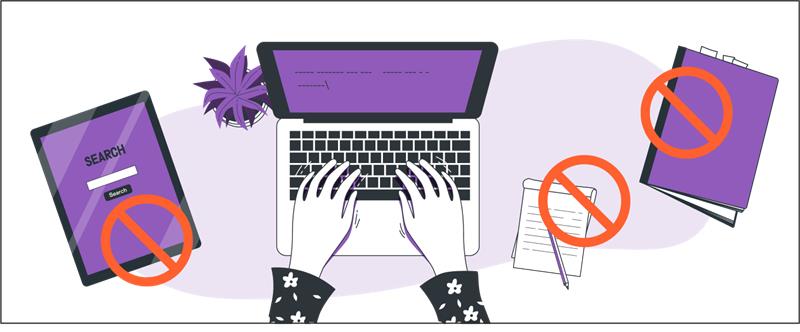
- The tabletop and surrounding area must be completely clear of unauthorized materials, including paper, pens, electronic devices, or anything that could provide an unfair advantage. This also includes any visible content on walls or nearby surfaces.
Windows & Glass Surfaces
- If you're testing in a company office, any windows or glass doors must be either covered or made of frosted glass to prevent distractions and maintain privacy.
- If you're testing from a personal space (like a home office or hotel room), you should cover any windows or glass doors to reduce distractions and ensure a secure testing environment.
Personal Appearance & Behavior
- Your ears must remain visible throughout the exam—hair, hats, or other coverings cannot block them. Religious headwear is permitted if ears remain visible.
- Face masks may not be worn during check-in or at any time during the test.
- Dress appropriately, as you will be monitored via camera by a proctor.
- Avoid wearing items such as large or ornate jewelry, tie clips, cufflinks, or decorative hair accessories.
Step By Step Video Tutorials
Watch these short 1-minute videos covering everything from setup to scores and cancellation.

Chapter 1 - Introduction
Introduction to Praxis At-Home Testing – Overview of the process.
Chapter 2 - Pre-Test Procedures
Setting Up Your Test Environment – How to create a distraction-free space.
Chapter 3 - ETS Secure Browser
Downloading & Installing ETS Secure Browser & Systems Check
Chapter 4 - Testing Guidelines
Rules & Regulations During the Test – Key do’s and don’ts.
Chapter 5 - Connecting with Proctor
Connecting with Your Proctor & Check-In Process – What to expect during check-in.
Chapter 6 - Unscheduled Breaks
Taking Breaks & Managing Time – Guidelines for scheduled and unscheduled breaks.
Chapter 7 - After the Test session
Viewing Scores & Next Steps – How to access your results and what comes next.
Chapter 8 - Need any help??
Reach out to the customer support in case of any test day related issues.